

Throughout their studies, Constanța Maritime University provides students with the MS Office suite free of charge.
Account activation period for first-year students: November 10 – November 30
How do I activate my Microsoft 365 account?
After enrollment, each student receives an email from no-reply@cmu-edu.eu with the subject “UMC Microsoft 365 account – activation details”. The email is sent to the personal address you provided to the Student Office.
The email contains:
- your username (your @cmu-edu.eu account)
- an activation code, which, together with the last 4 characters of your CNP (or of your PASSPORT, for international students) forms your temporary password
Example:
- Student: Surname F. Name
- CNP/PASSPORT: 50403121234
- Username received by email: surnamefname@cmu-edu.eu
- Activation code received by email: Kxbq#
- Temporary password: Kxbq#1234
Activation steps:
- Go to office.com and sign in with the details from the email.
- Set a new password: at least 8 characters, containing at least three of the following: uppercase letter, lowercase letter, digit, symbol (e.g.
Stud3nt@UMC). - Install the Microsoft Authenticator app on your phone and follow the on-screen steps.
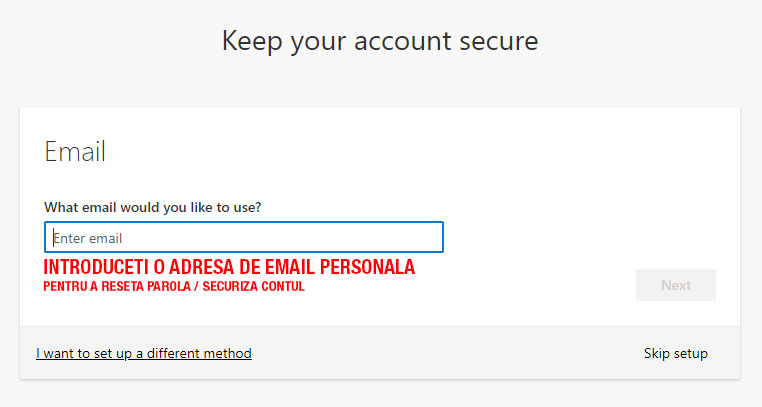
- Add your personal email address so you can recover your password yourself in the future.
Account Security / Update Information
📧 Didn’t receive the email?
- Check your Spam / Junk and Promotions folders.
- If you can’t find it, or you did not provide an email address, go to the Student Office with your ID document.
Having problems? Write to suportoffice365@cmu-edu.eu. Do not reply to the no-reply address, as messages sent there are not read.
⚠️ Important – what your email to support must include
Emails sent to suportoffice365@cmu-edu.eu regarding your Office 365 account will be considered only if they include:
- Your full name
- Your year of study and study program
- A photo of your student ID card
Messages that do not include this information will not be processed.
How do I sign in?
Each student has an account made up of their LAST NAME, FATHER’S INITIAL(only the initial of the father’s first name) and FIRST NAME
For some users the father’s initial is missing, so if you get a message that the user does not exist, try without the father’s initial, using only your LAST NAME and FIRST NAME followed by @cmu-edu.eu.
- standard username: surnameinitialname@cmu-edu.eu (e.g. surnamefname@cmu-edu.eu)
- username without father’s initial: surnamename@cmu-edu.eu (e.g. surnamename@cmu-edu.eu)
- username with 2 or more first names: surnameinitialname-name@cmu-edu.eu
- (since 2025, users with several first names should try each of their first names in turn until they get a message that the username is recognized)
- password: Cmu*xxxx, where xxxx are the last four digits of your CNP or PASSPORT number
- email: your email address is created automatically by Office 365; see the Outlook email app.
- example: Surname F. Name
- username: surnamefname@cmu-edu.eu
- password: Cmu*1234
- the new password must contain: at least 6 characters, including an uppercase letter, a symbol and digits (e.g. stud3nt@UMC)
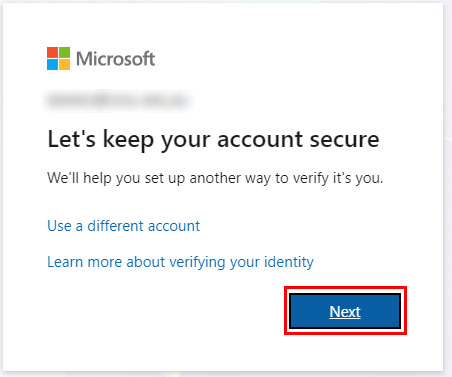
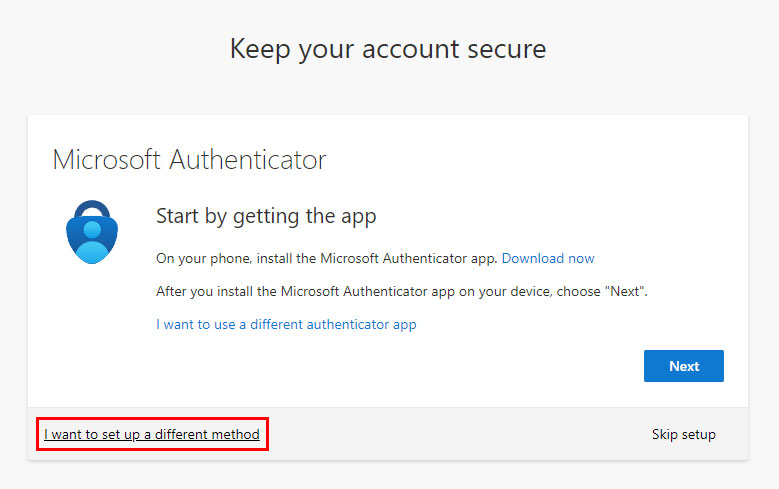
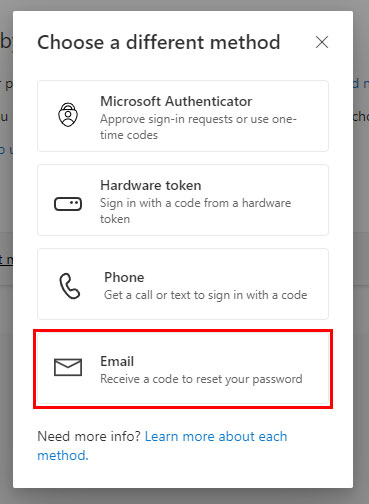
- add a personal email address when setting up your MS Office account so you can recover your password.(see the images below)
***
For your security, we recommend changing your password immediately!
Use the steps and security methods provided by Microsoft to confirm your account (see the Account Usage section on this page).
Use your personal email and secure your account at first sign-in
Using your account in other applications
Your @cmu-edu.eu account is intended for the Microsoft 365 applications provided by the university: Outlook, Teams, OneDrive, Word, Excel and PowerPoint.
Access by external applications (other email apps, online platforms, mobile apps) to your student account is restricted. If you see the message “Need admin approval”, that application cannot be used with your university account.
If a platform asks you to prove your student status, choose another verification method it offers, such as uploading a student certificate.
To access your email on your phone, use the Microsoft Outlook app (Android / iOS).
After graduation, students who continue with another study program (master’s / complementary year) have 30 days to send an email to suportoffice365@cmu-edu.eu in order to keep their MS Office license.